
Meetings & calls
Set up Zoom meeting transcripts
Bring Zoom cloud-recording transcripts in as minutes — every cloud-recorded meeting with an audio transcript becomes a dated minutes document headed with its host, the transcript naming who's speaking as it runs. Read-only.
Before you start
- In Zoom, enable cloud recording with an audio transcript — Account Settings → Recording → Advanced cloud recording settings.
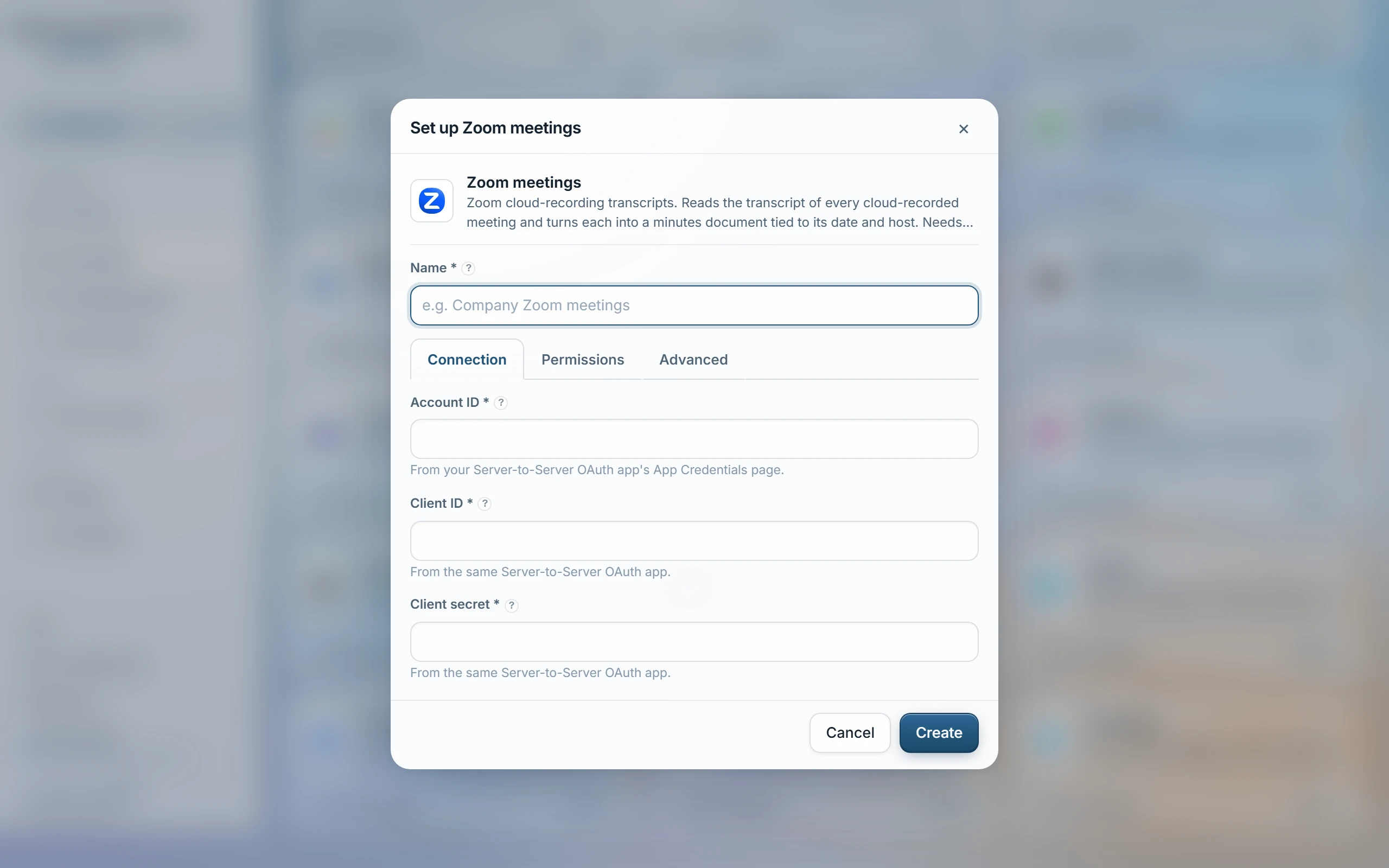
- At marketplace.zoom.us choose Develop → Build App → Server-to-Server OAuth, and give it the read scopes for users and cloud recordings. Its App Credentials page shows the Account ID, Client ID and Client Secret together — no browser sign-in follows; tokens mint themselves from these three values.
- Documents → Zoom meetings, paste the Account ID, Client ID and Client Secret.
- Choose access groups, Test, then Sync.
What comes in
- One minutes document per cloud recording that has a completed transcript file — a recording without one doesn't come in.
- The header carries the date and host; the transcript names each speaker as the conversation runs. Zoom's recordings API doesn't expose the guest list, so there's no separate participant roster.
| Only these hosts | Host emails, one per line, to sync just their recordings. Blank syncs every active user's recordings. |
|---|---|
| History to sync (days) | How far back to read recordings — 180 days if left blank. |
Access
By default a recording is visible only to its host, matched by their Zoom account email — the access groups you choose below only cover a recording with no resolvable host email. Switch How access works to “One list for everything” under Permissions to put every recording from this source under the chosen groups instead, for anyone in them to ask about any host's calls.
Only meetings Zoom itself transcribed can come in. What Zoom's retention has already deleted cannot be synced — but minutes synced before the cleanup stay searchable.
Last updated 20 Sep 2026